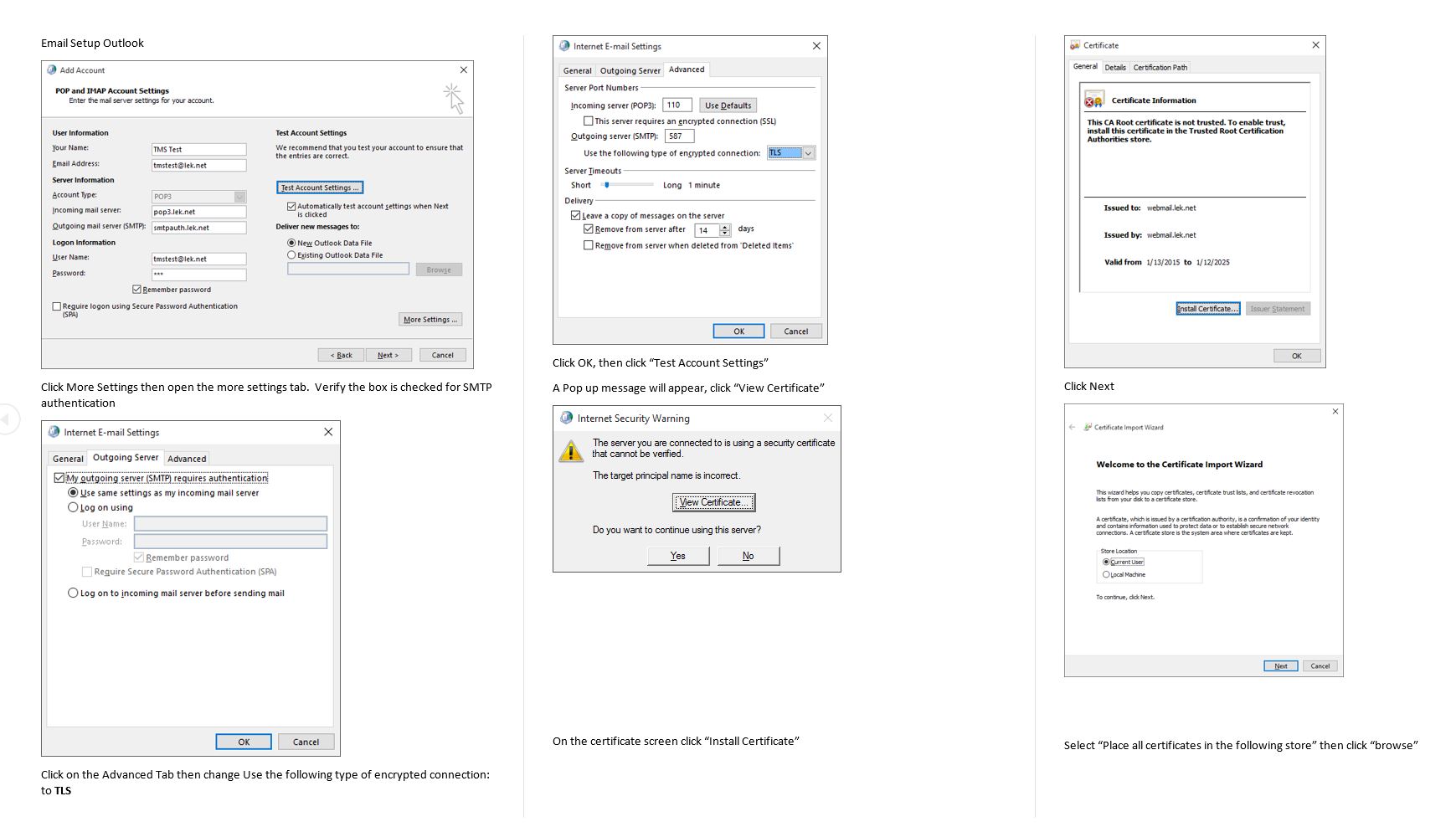
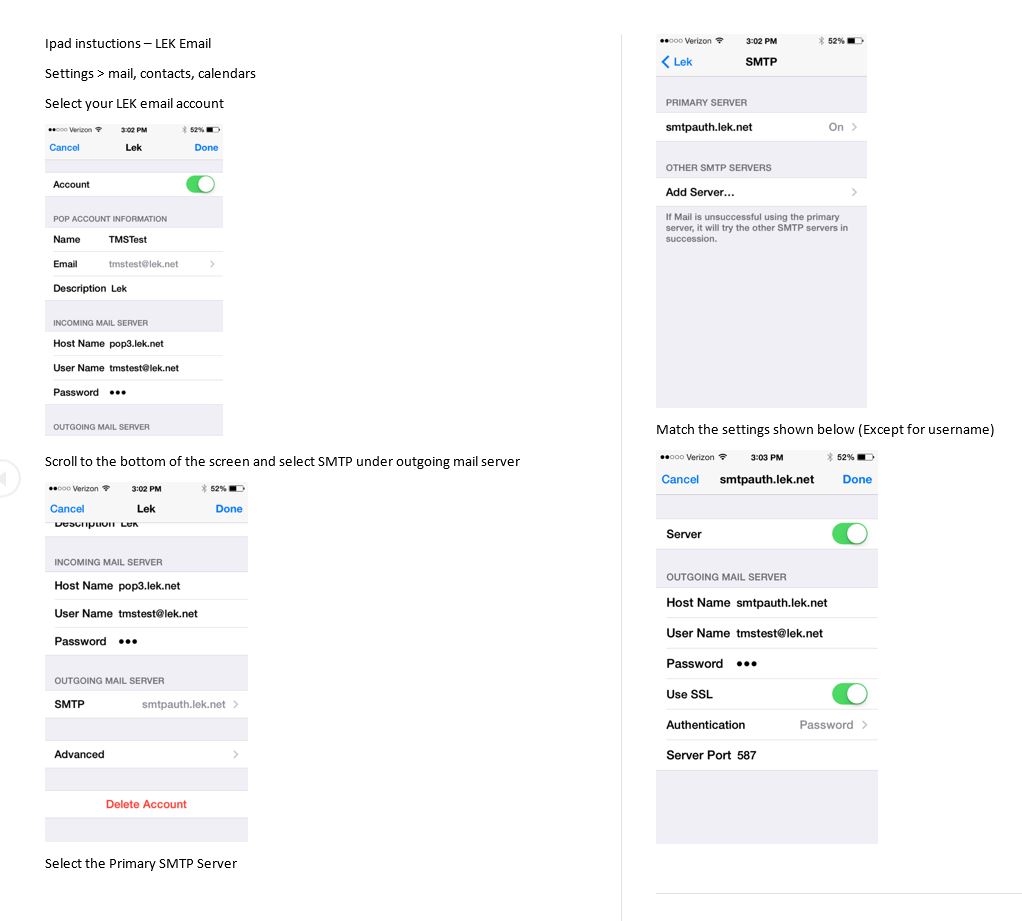
These are step-by-step instructions. For additional questions about this page or any other technical support issues please contact support [at] lek.net or call 330.762.2040 during regular business hours.
If you’re receiving email, but cannot send please see the section at the bottom of the page for changing the outgoing port number.
These instructions will walk you through setting up an LEK email account in your iPhone. You will be able to receive and send messages on the go using nothing but your phone. Please note that some locations may block sending email from their local wifi. You should always be able to send and receive using 3G service from your cellular provider.
To get started go to the iPhone Settings and select Mail, Contacts, Calendars. Click on Add Account… and then select Other. On that screen click Add Mail Account. Here you will enter your user information and click Next.
The next screen you will be entering the incoming and outgoing server information. The incoming server is pop3.lek.net and the outgoing server is smtp.lek.net. The user name is your entire email address.
When you click save you will be asked (usually twice) if you want to setup the account without SSL. You must press Yes each time you are asked or you email will not work. Your phone will try to verify the settings and may take a minute until it is finished. Once done you should get check marks on all settings and your account will be setup.
You may need to set your computer’s email client (Thunderbird, Outlook, etc) to leave a copy of your messages on the server. Most new versions will do this automatically, but you may want to check those settings if you do not receive some messages on your phone. This procedure is different for each program, and you can call LEK for assistance if needed at 330.762.2040.
Changing the Outgoing Server Port Number
If you travel a lot and use the wifi networks on your iPhone you may also need to change your outgoing port number to 587. To do so go to the iPhone Settings then Mail, Contacts, Calendars, and click on your account. Then click SMTP and click smtp.lek.net (should be your Primary Server). At the bottom of that page there is an option for to change the port number (default is 25). Click there and type 587.
For questions regarding this document, or other technical support issues please contact support@lek.net or call 330.762.2040 during regular business hours.
These additional images may help with your phone setup.
- User Info
- Incoming Server
- Setup without SSL
- Change Server Port Number
- Outgoing Server